
 Türkçe

Current-use note: This guide applies to GİB workflows that still use Java/JNLP-based signing tools. GİB screens and technical requirements may change, so check the latest official instructions while applying these steps.
If the GİB e-Invoice, e-Ledger, e-Archive or other e-Document signing tool does not open, closes immediately, or cannot complete signing, the cause may be the Java installation, Java security settings, or the JNLP file association.
1 - Install the 64-bit Java version
Open the manual Java download page and select the 64-bit Windows offline installer when this is required for your GİB signing environment.

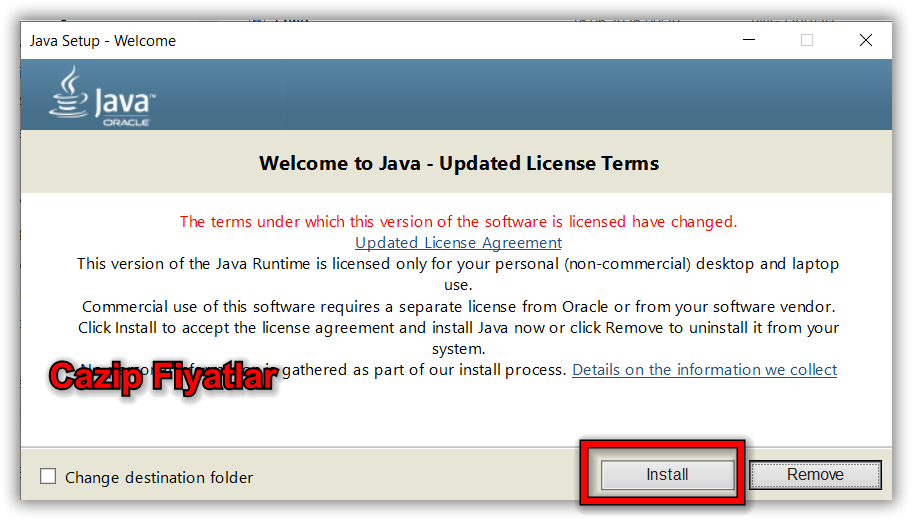
2 - Start the Java installation
Run the downloaded installer and follow the installation steps.
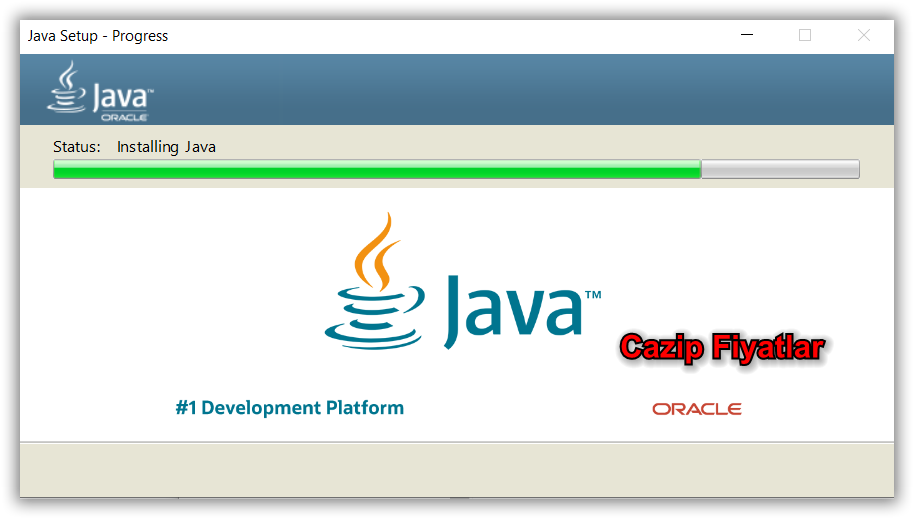
3 - Wait for the installation to complete
Allow the Java files to be installed without interrupting the process.
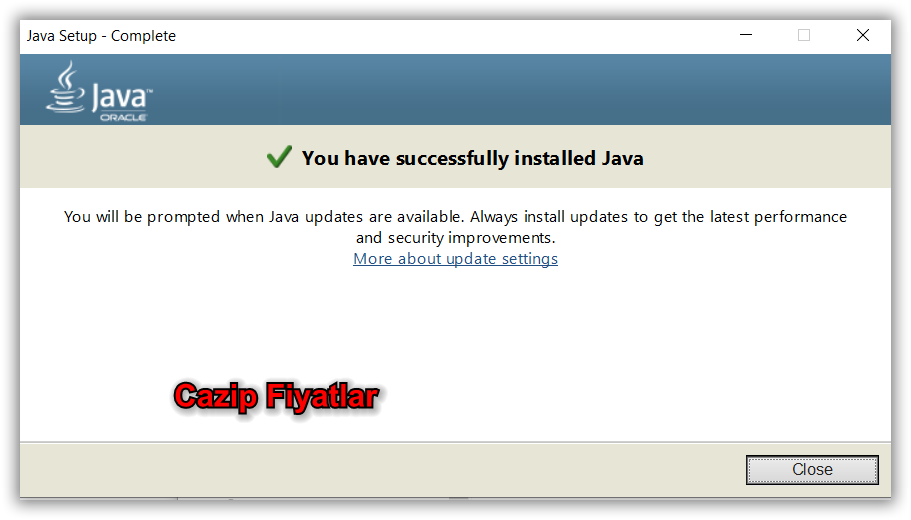
4 - Finish the Java installation
When the installation completes successfully, close the installer.
5 - Check the e-Invoice JNLP file association
GİB signing tools may use a .jnlp file. Open the file properties and check which application is used to open it.
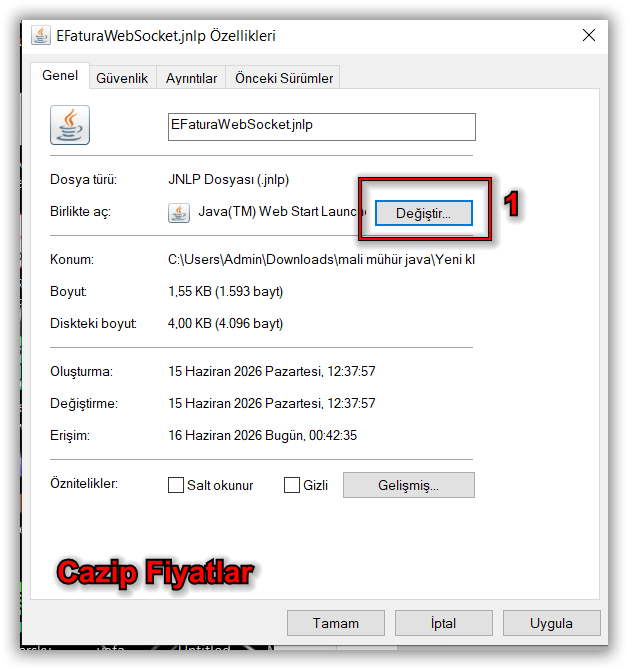
6 - Choose another application if necessary
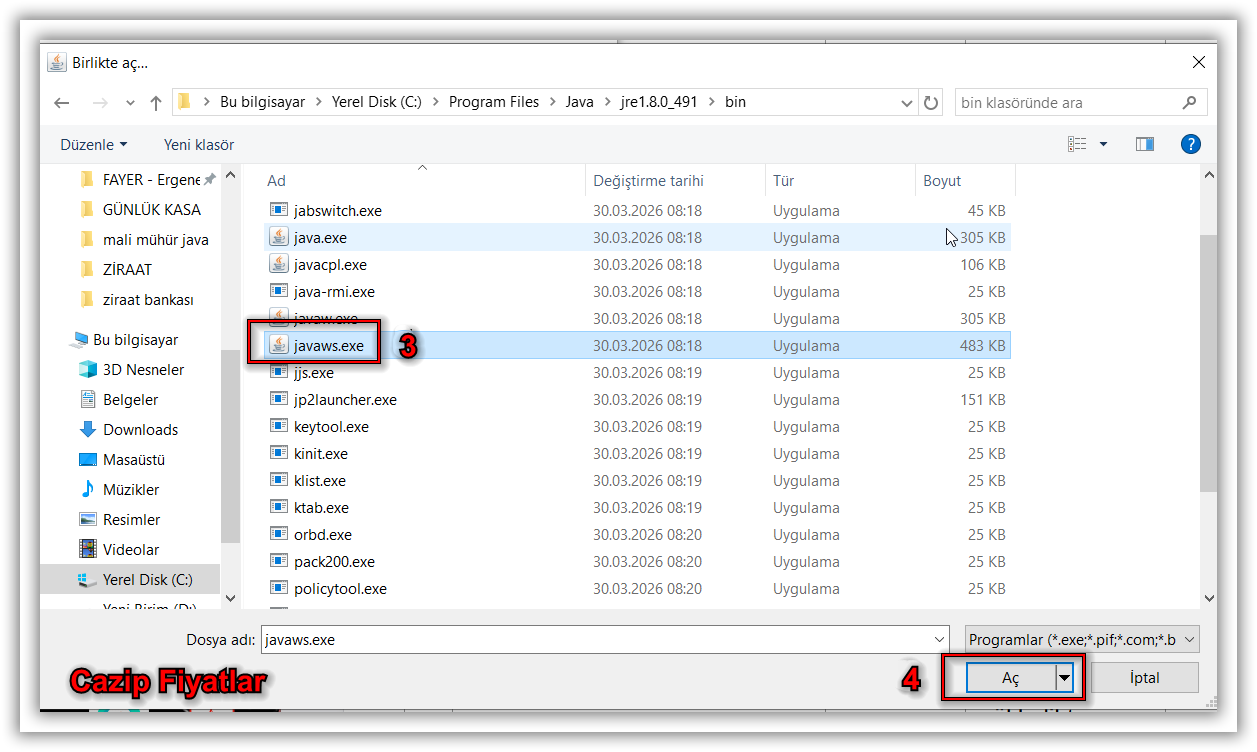
If Java Web Start is not correctly associated, choose another application and browse to the Java installation.

7 - Select javaws.exe from the appropriate Java installation
In Java environments that include Java Web Start, select the correct javaws.exe executable from the Java installation used by the GİB tool.
8 - Apply the file association
Save the file association and test the JNLP file again.

9 - Add the required GİB addresses to Java security settings
Open Java Control Panel, go to the Security tab and review the Exception Site List. Add only the official GİB addresses required by the workflow you use.

10 - Check Java runtime settings
Review the Java runtime configuration and remove obsolete or incorrect runtime parameters that may prevent the signing tool from starting.

After a Java update
If the signing tool stops working after a Java update, recheck the JNLP file association, Java security list and runtime settings.
Summary
- Use the Java environment required by the current GİB signing workflow.
- Make sure JNLP files open with the correct Java Web Start component when applicable.
- Check the Java Exception Site List for the official GİB addresses you use.
- Recheck file associations after Java updates.
- Keep runtime parameters free from obsolete settings.